Notification
Provides a list of all service alert notification events in the current project, allowing project administrators to configure notification frequency and pause times based on project requirements.
info
This feature requires Tenant Admin or Project Admin permissions.
Notification settings
- Click your username in the upper-right corner, then tap Notification.
- Click the more options icon to the right of the service notification list, then tap Rule Setting.
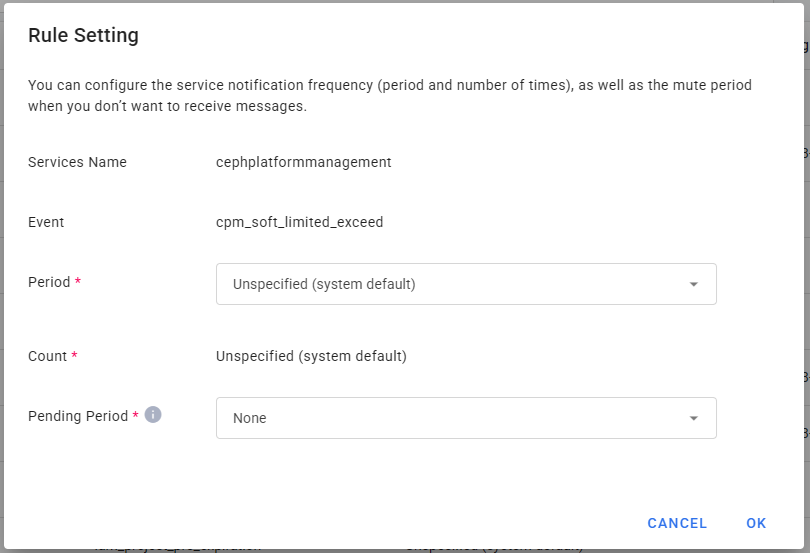
- After opening the Rule Setting window, Set the frequency (interval and number of times) of service notifications as needed, as well as the silent period for when you don't want to receive messages. After completing the rule, click OK.
- Service Name: System Default.
- Event: System Default.
- Period: Unspecified (system default), 1 day, 2 days, or 7 days.
- Count: Unspecified (system default) or enter a number.
- Pending Period: The period during which notifications are suspended. Select None or 1 to 24 hours from the drop-down menu.
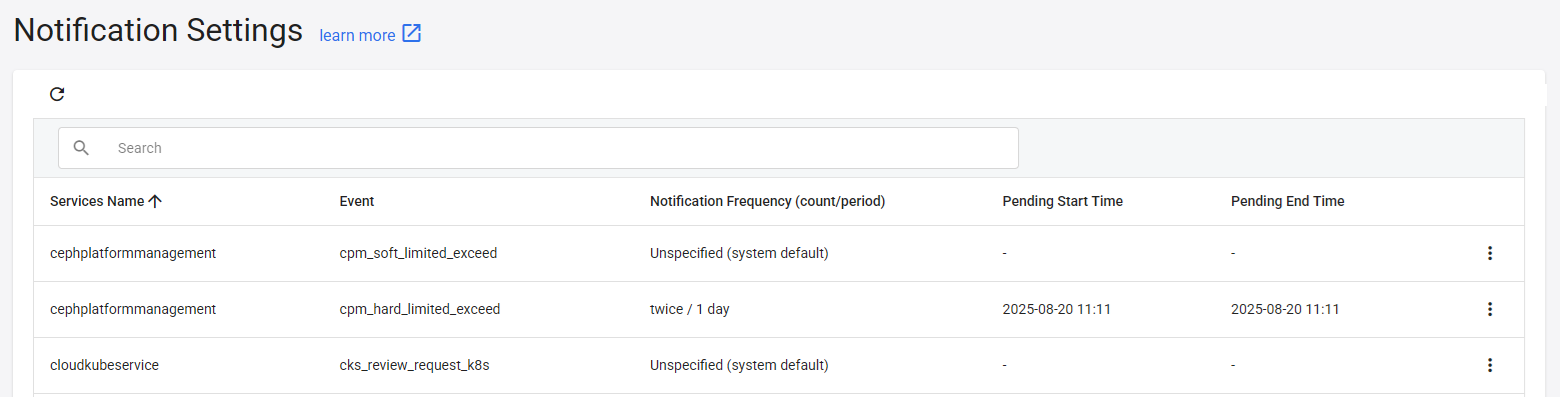
Once the settings are complete, they will be displayed in the list. The system will then send notification emails to all project members according to the configured rules.
Notification logs
Provides a list of notification event delivery records and supports exporting them as CSV reports for easy management and analysis.
- Click Logs in the left menu to access the Notification Logs page and view notification event information.
- Click the Time menu to select a preset time range, or select Custom to set the date/time range you want to view.
- Click the More Options icon on the right side of the Notification Log list, then click Raw Data to view and copy the raw data for the notification event.
- Click Export at the top to export the filtered list results as a CSV report. After the export is complete, click Download. The button will revert to its disabled state after downloading.