Log in to U-T Cloud
The U-T Cloud login page has added a two-factor authentication (MFA) feature to enhance account security. You will now need to enter an OTP for the second-stage authentication during login.
- The OTP for logging in to U-T Cloud can be obtained directly on the login page.
Step 1. Enter account and password
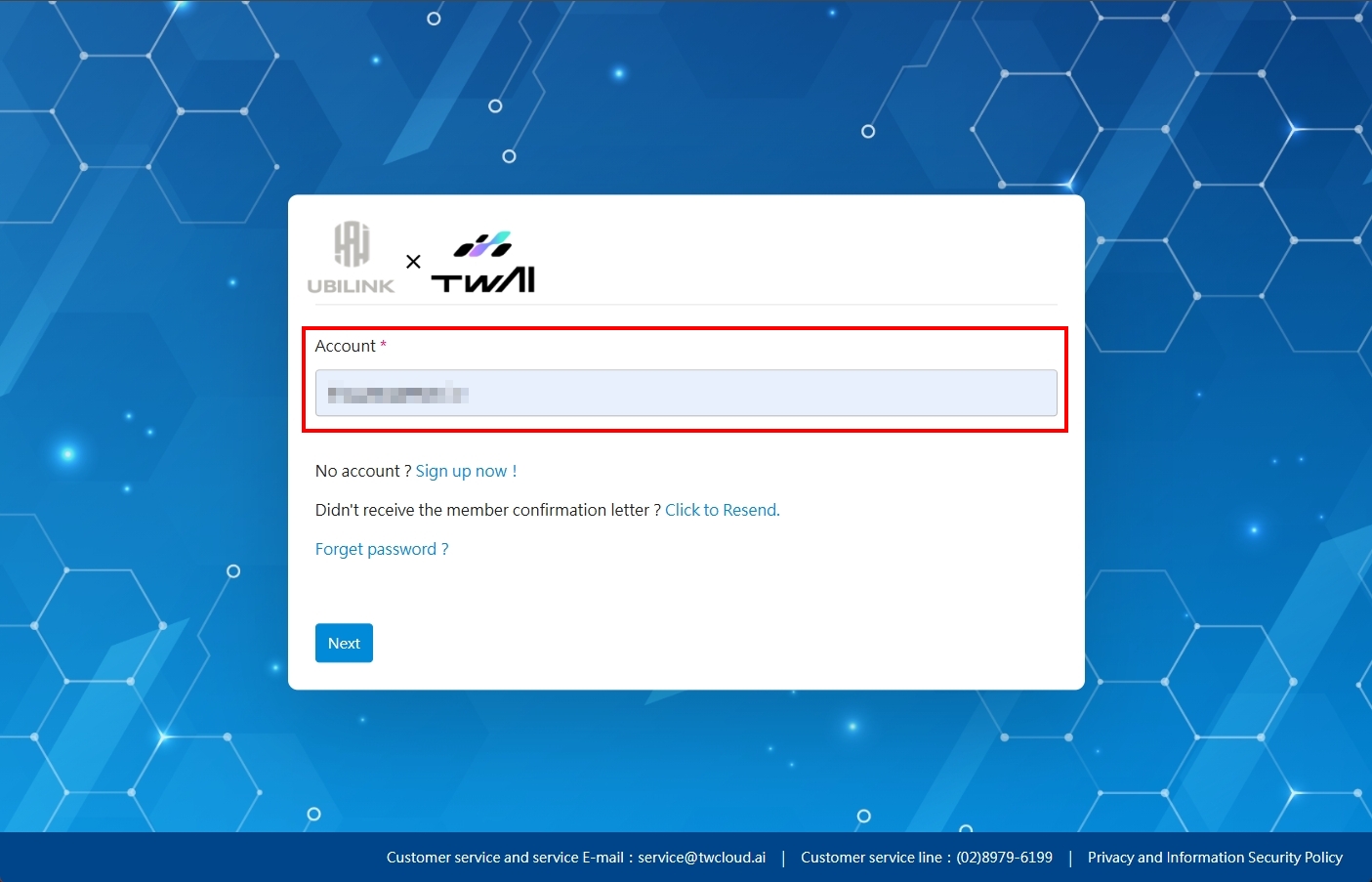
- Go to the U-T Cloud login page, enter your account, and click Next.
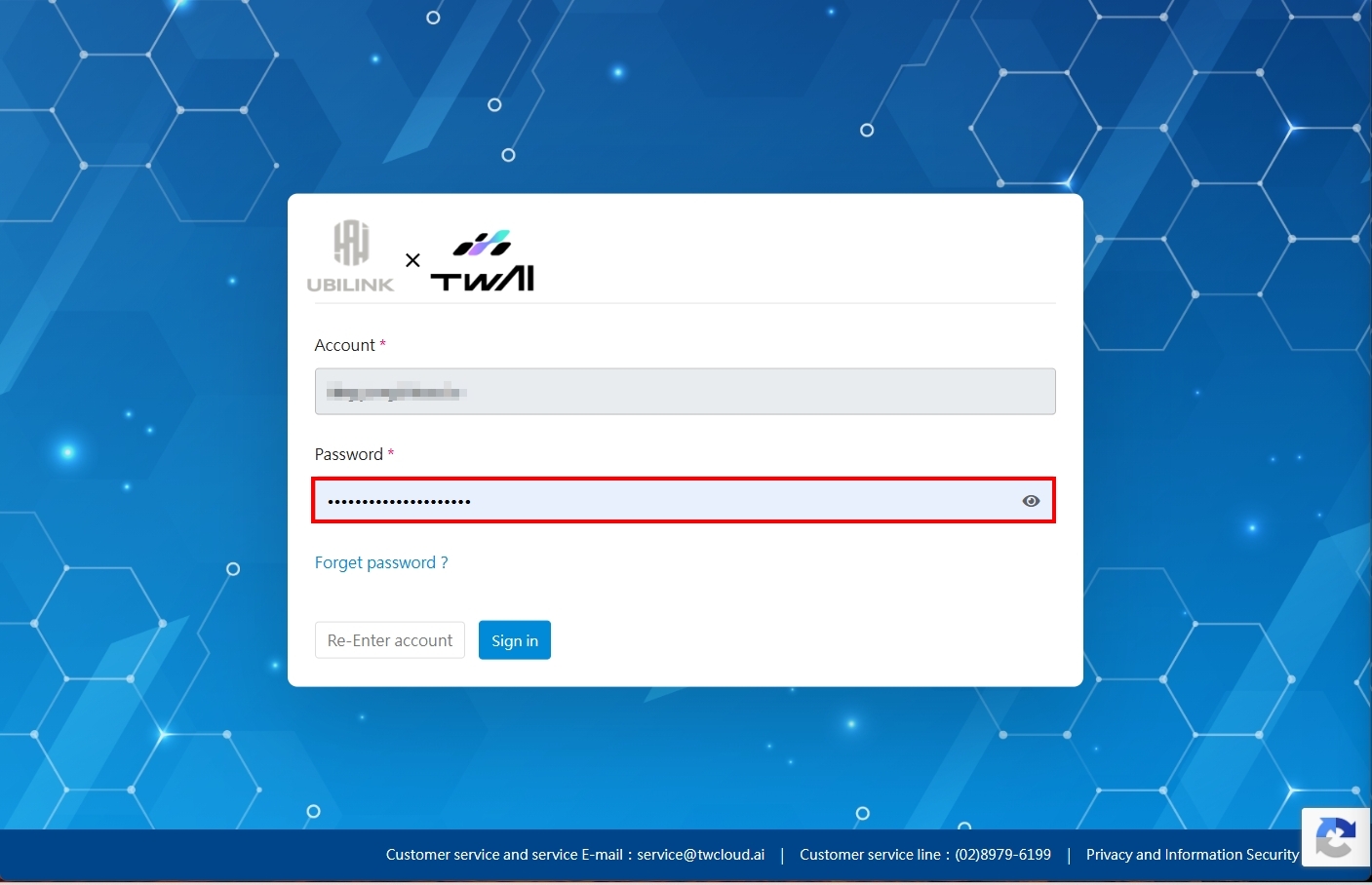
- Enter your password, and click Sign in.
Step 2. Obtain the OTP
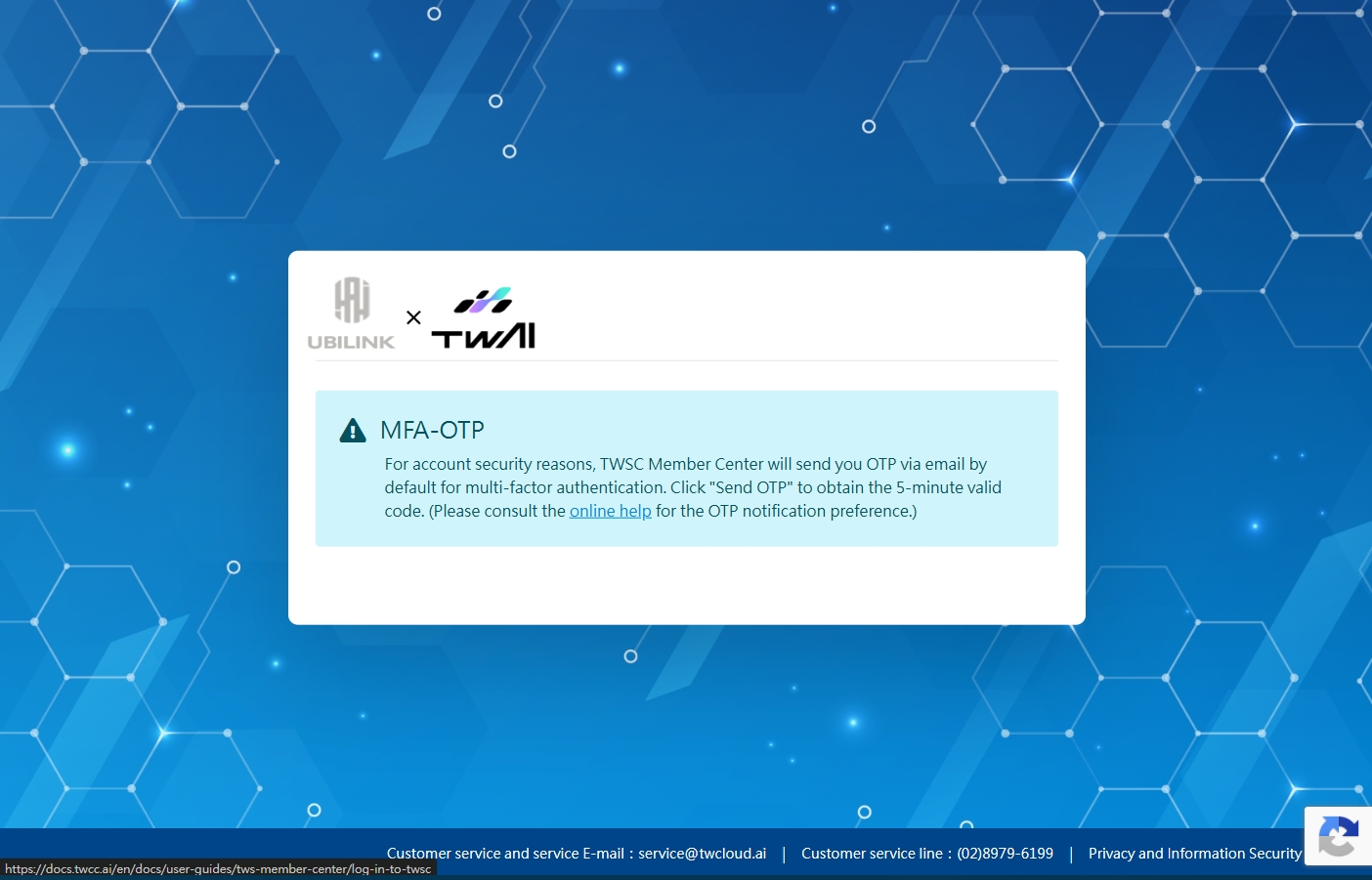
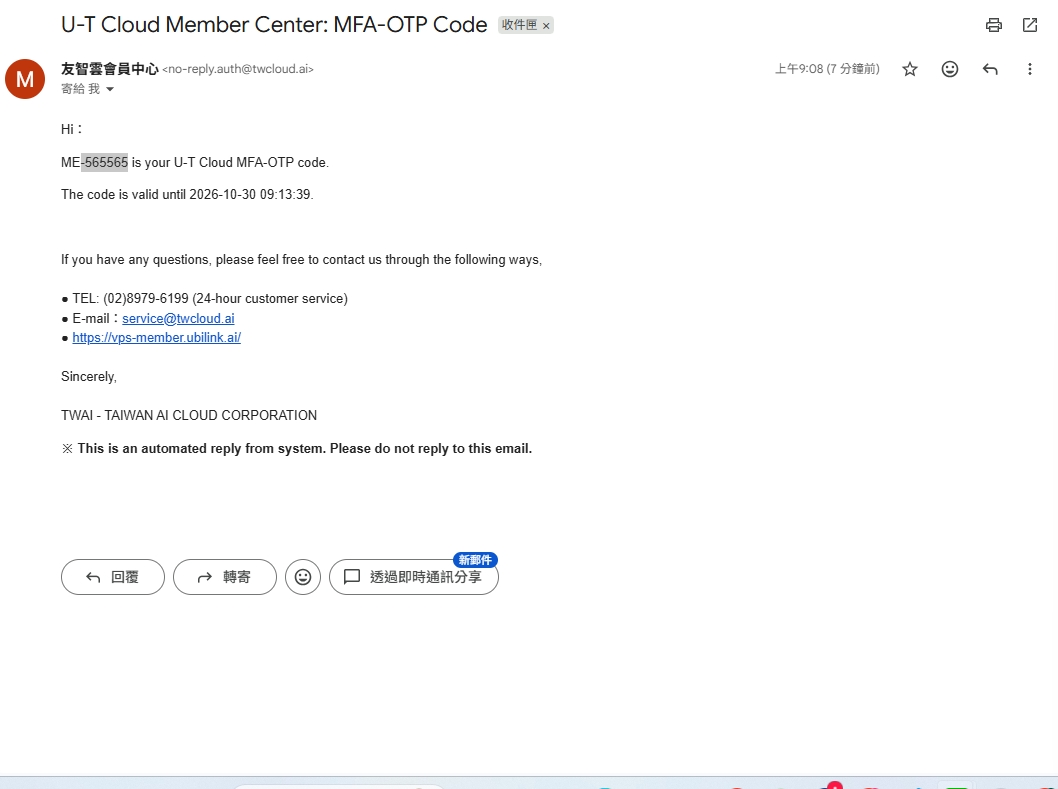
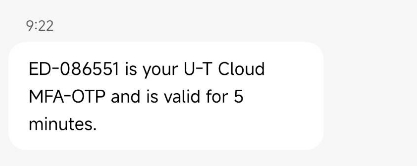
- The OTP will be sent to your email or phone according to your notification preference settings.
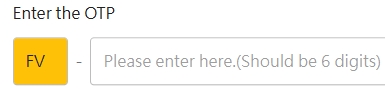
The OTP consists of: English alphabet-six-digit number. You can identify each set of OTP based on the prefix to avoid input errors.
-
Obtain the OTP via email/SMS
- Email notification
- SMS
If the notification preference is not set, the default will be email notification only. If you wish to change the preference settings, please go to Member Center > Member Information > OTP & System Account Information to make the changes.
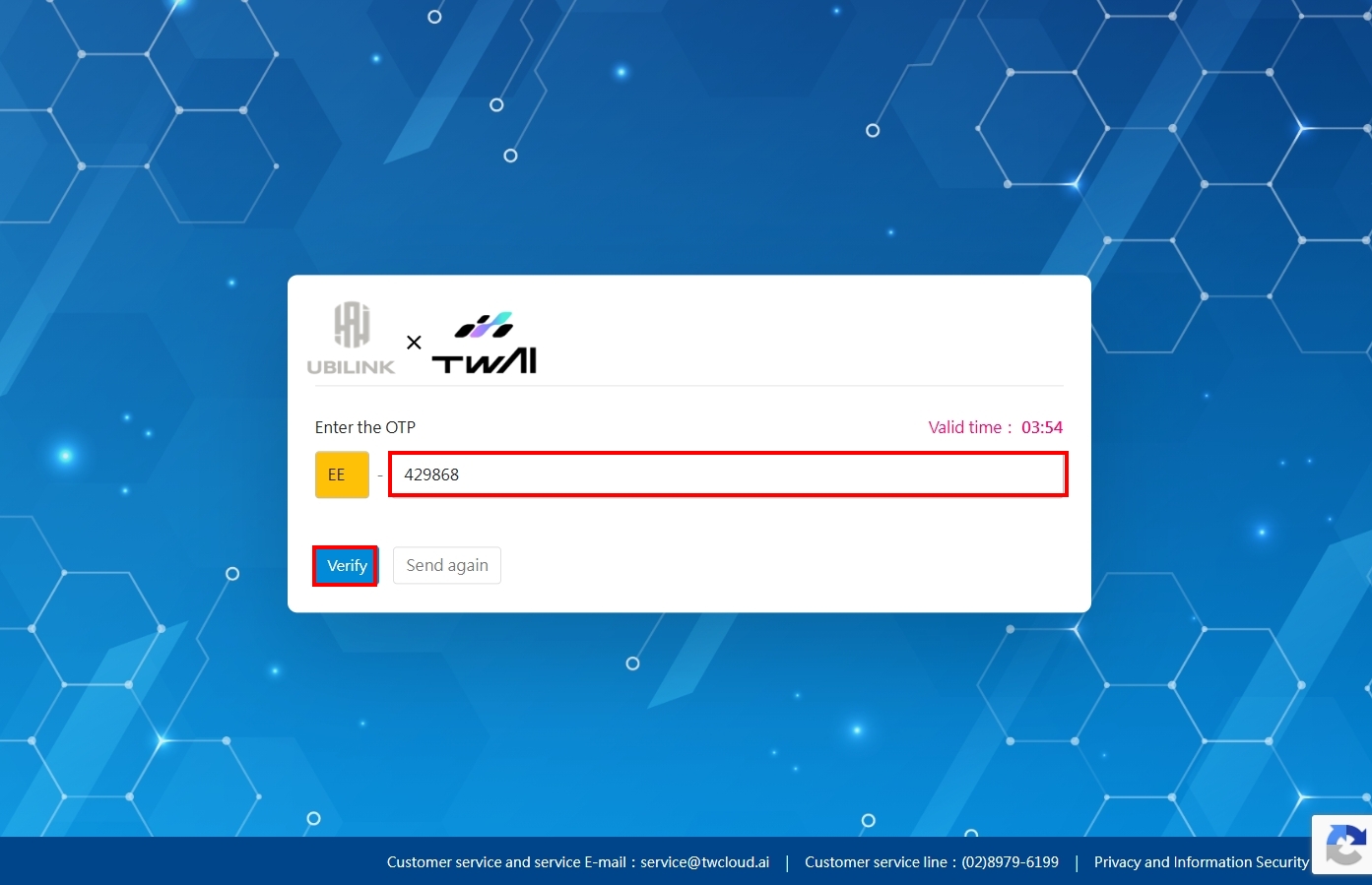
Step 3. Enter OTP
- Enter the OTP, and click Verify.
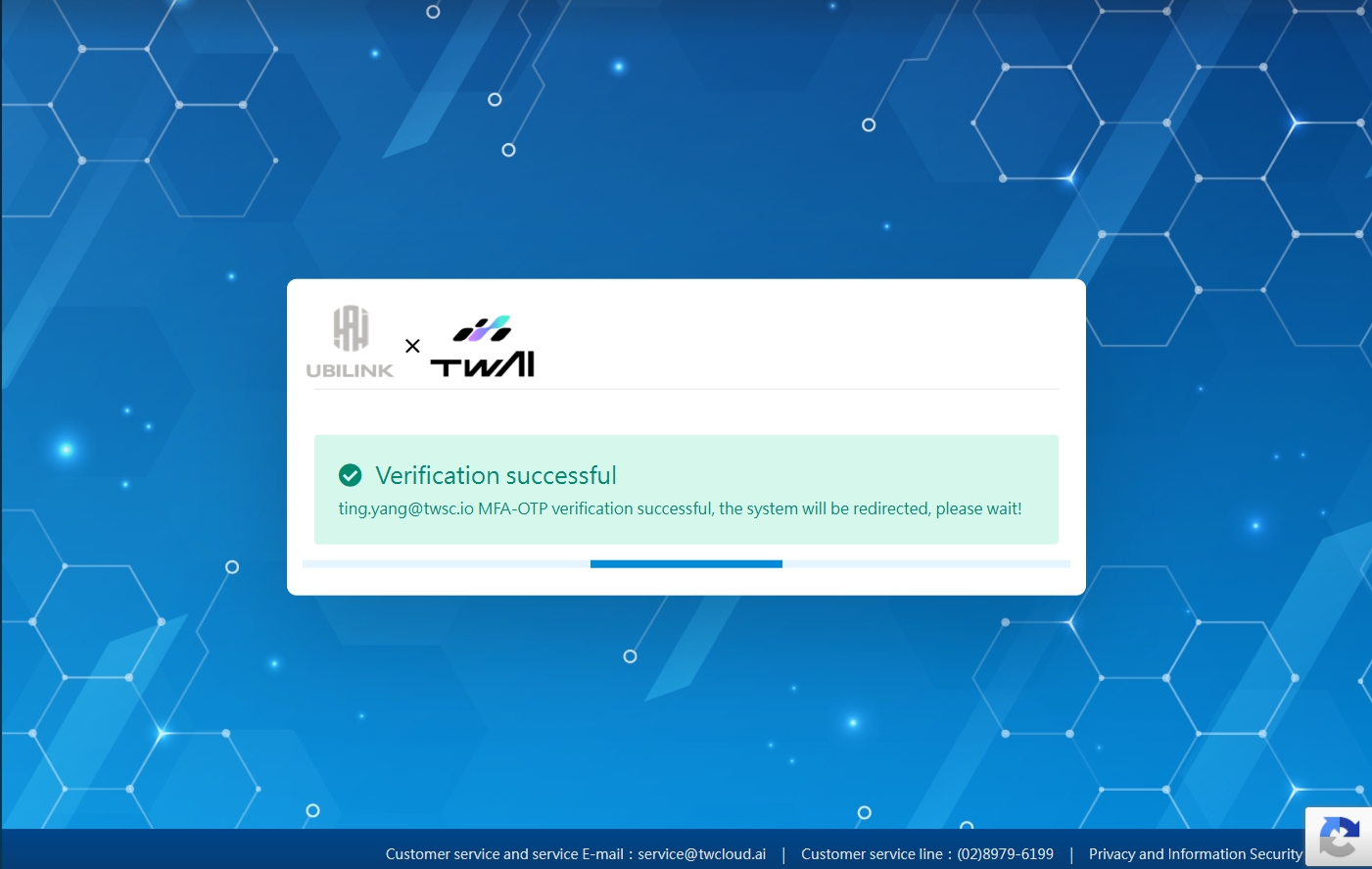
Successful verification
- If the verification is successful, you will see the following screen.
Failed verification
A failed verification may be caused by an incorrect OTP or an expired OTP.
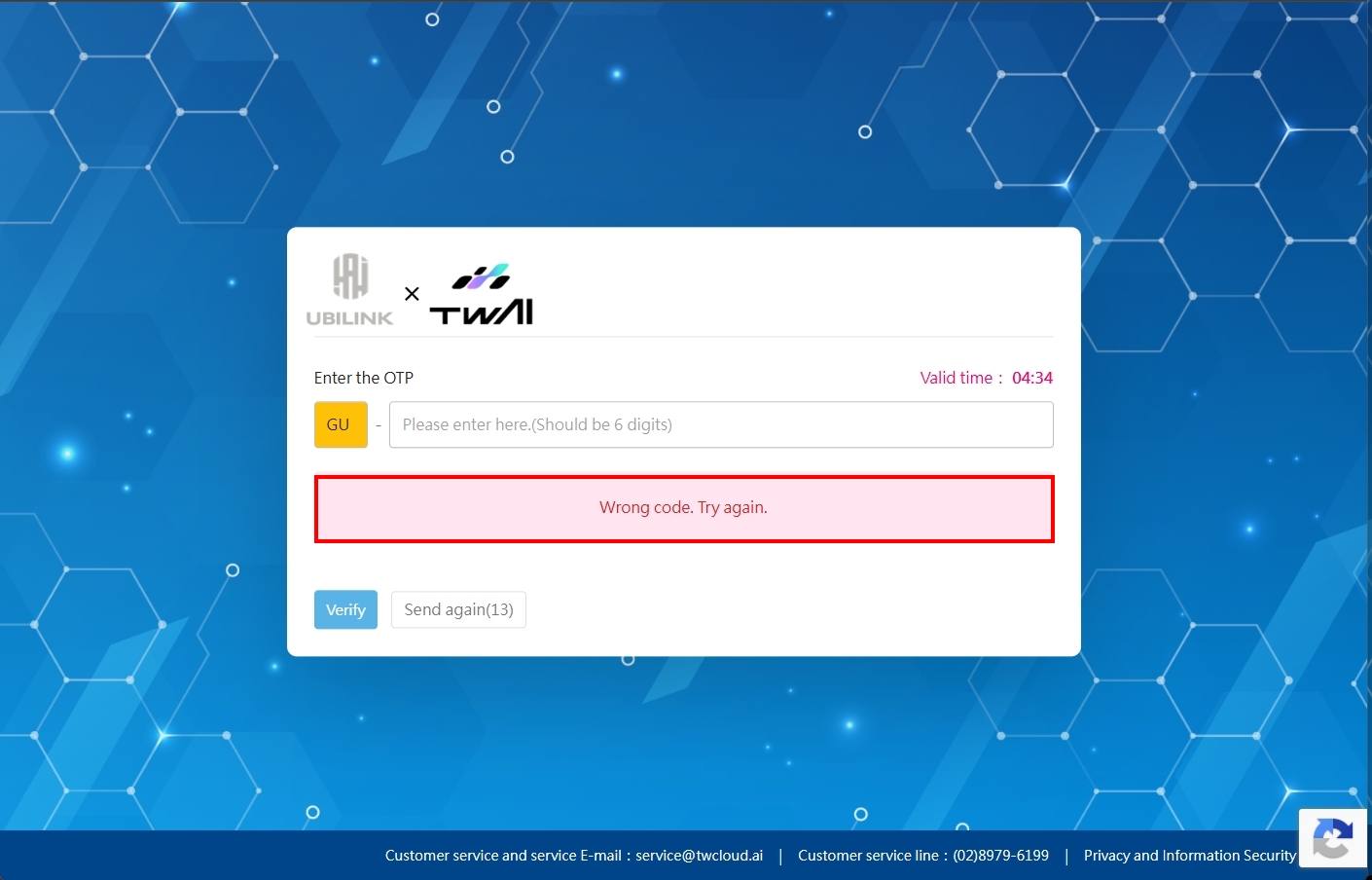
1. Incorrect OTP
- If the OTP is incorrect, you will see the following error message. Please enter the correct OTP.
2. Expired OTP
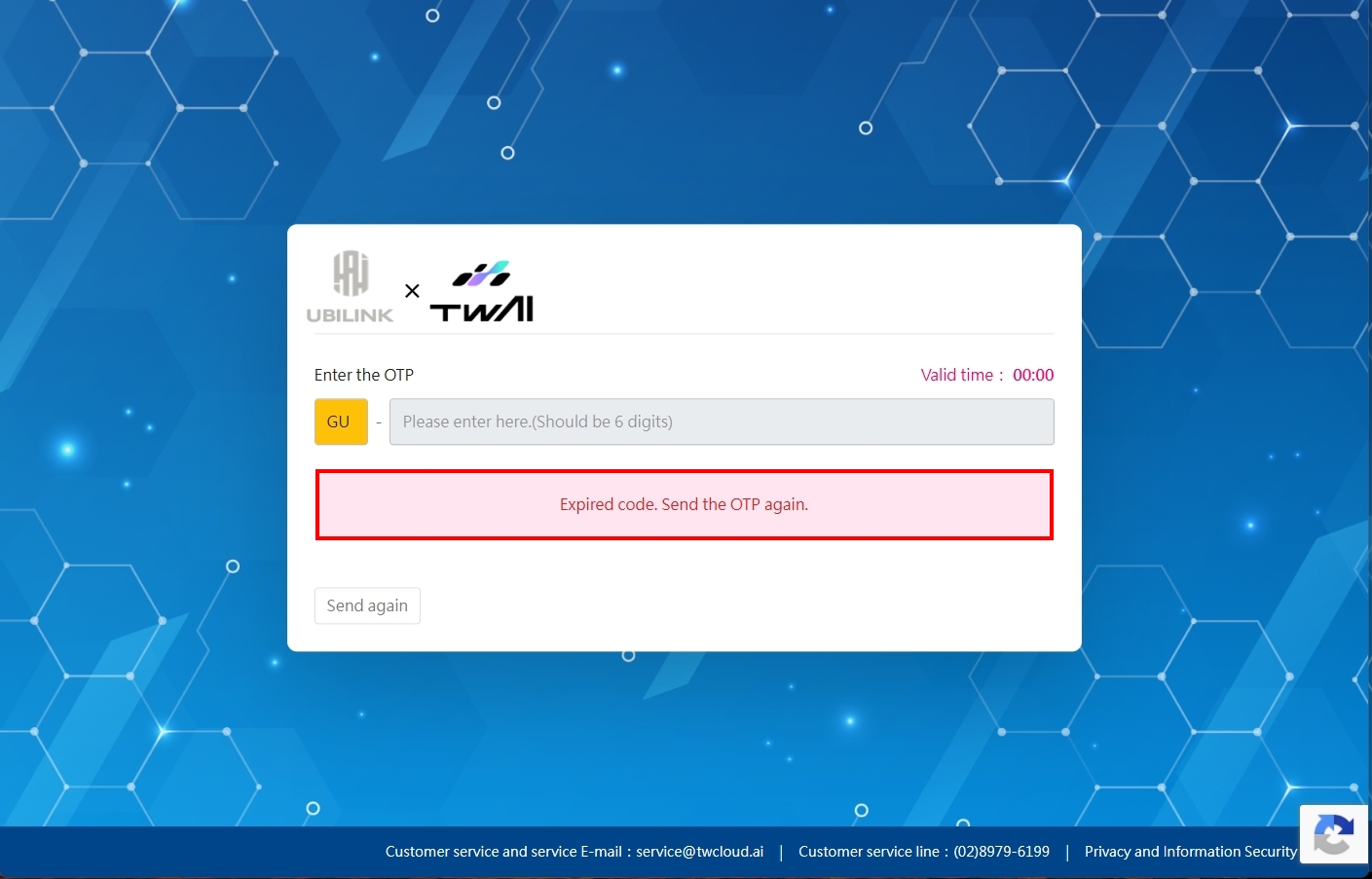
- Each set of OTP is only valid for 5 minutes. If the OTP expires, please resend the OTP.
Resend OTP
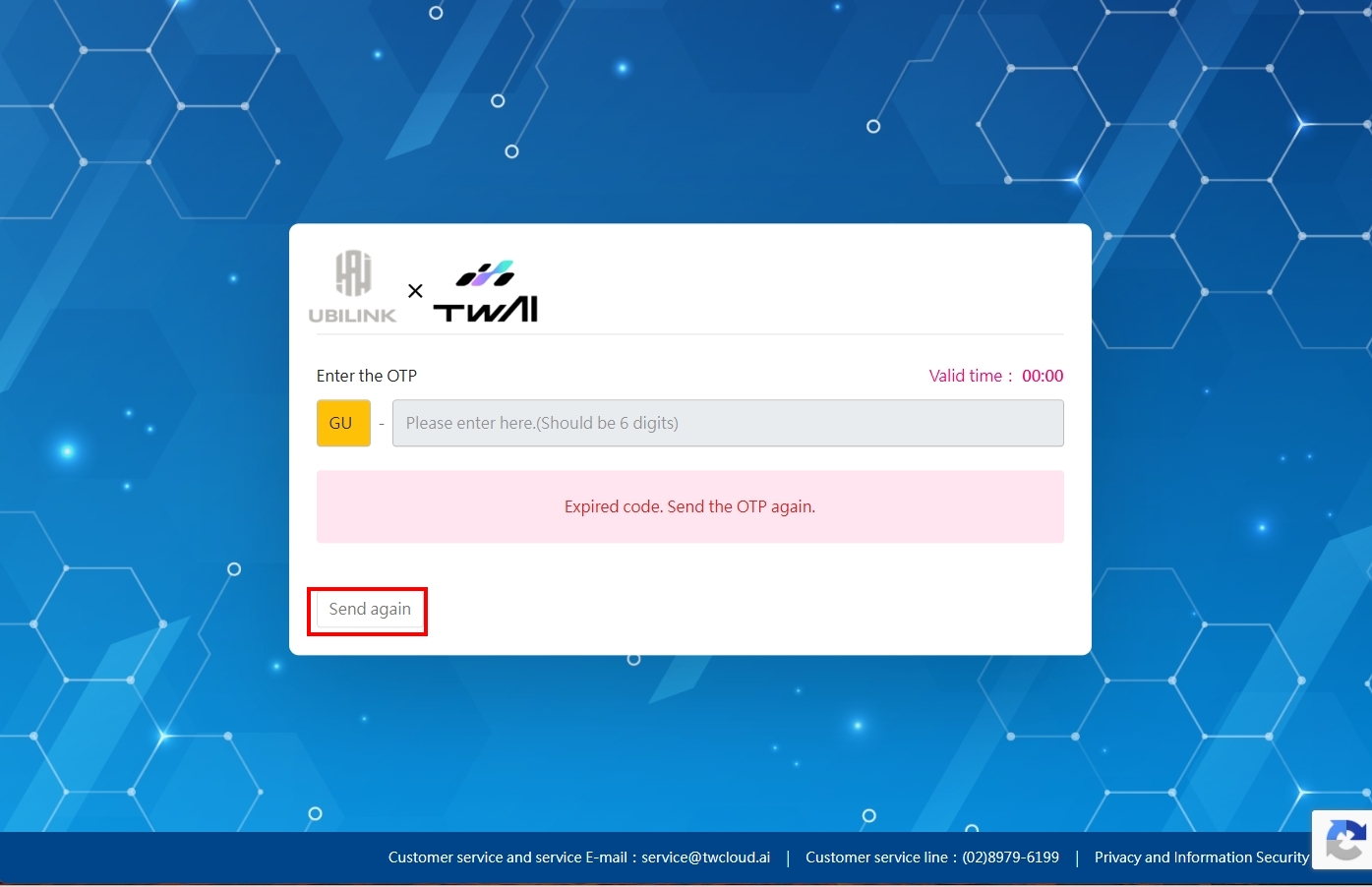
- If the OTP is invalid or expired, please click Resend OTP and enter the new OTP.
Change the OTP notification preference
If the notification preference is not set, the default will be email notification only. If you wish to change the preference settings, please go to Member Center > Member Information > OTP & System Account Information to make the changes.

- Click Edit.

- Select your preference, and click Save.
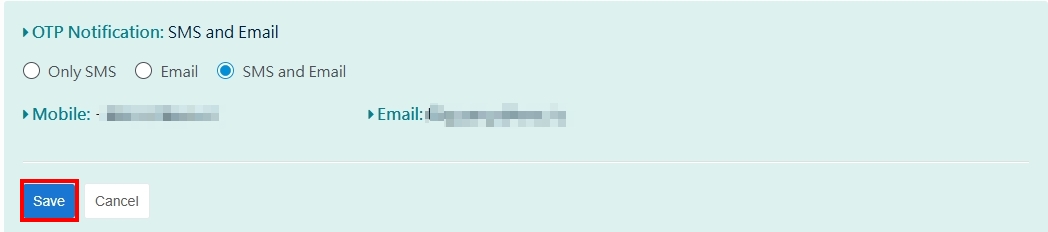
After the changes are made, the new preference settings will take effect after 10 minutes.