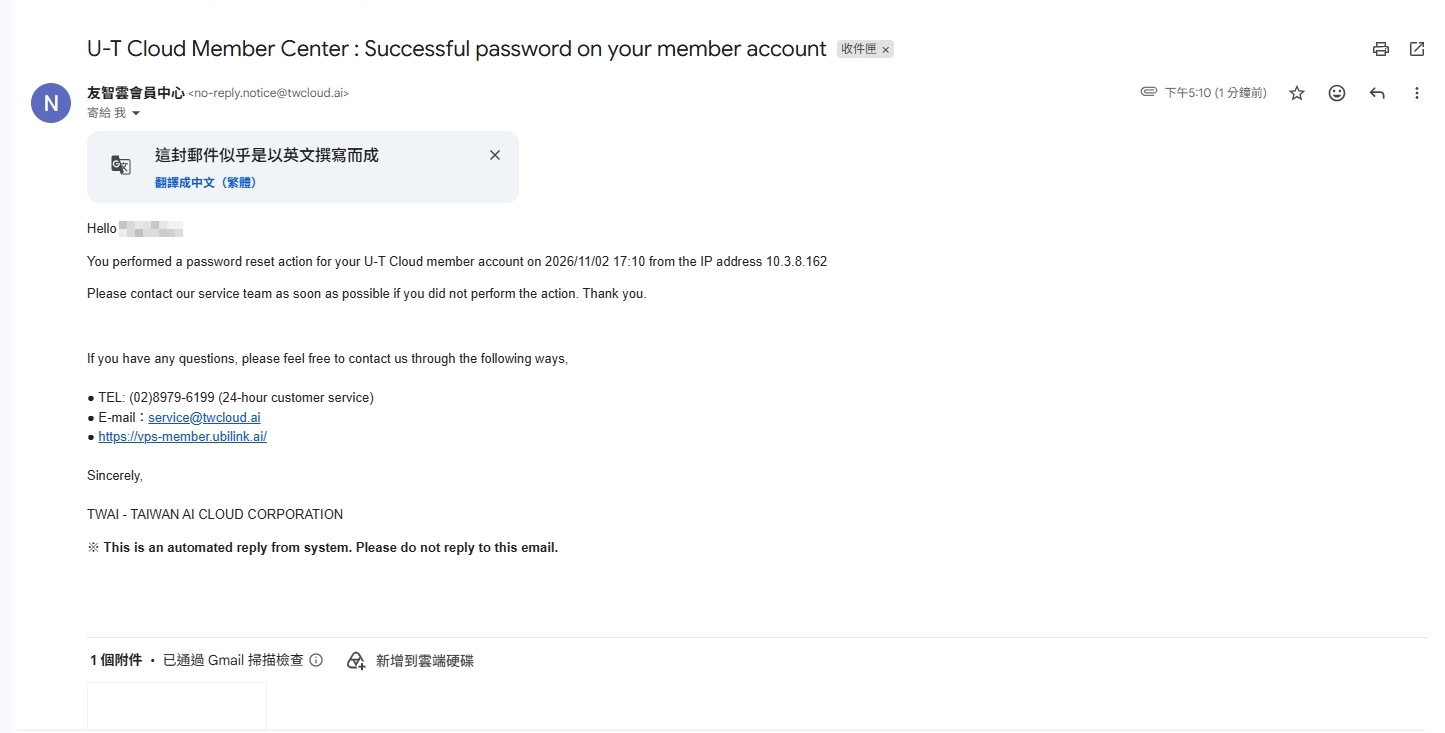
Reset U-T Cloud member password
We do not keep your password. If you forget your login password, please follow the steps below to reset it and save it properly.
Step 1. Go to the member login page
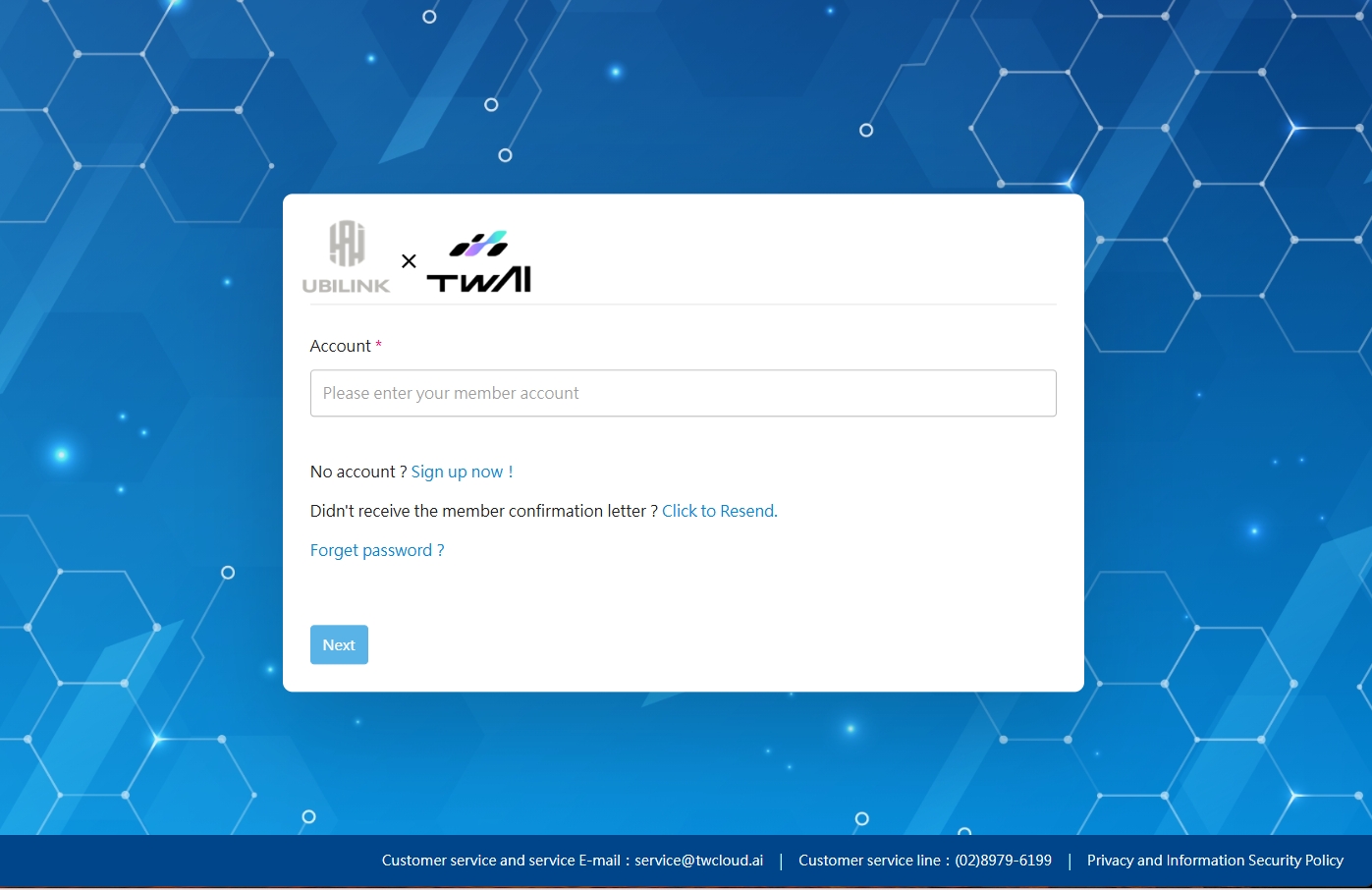
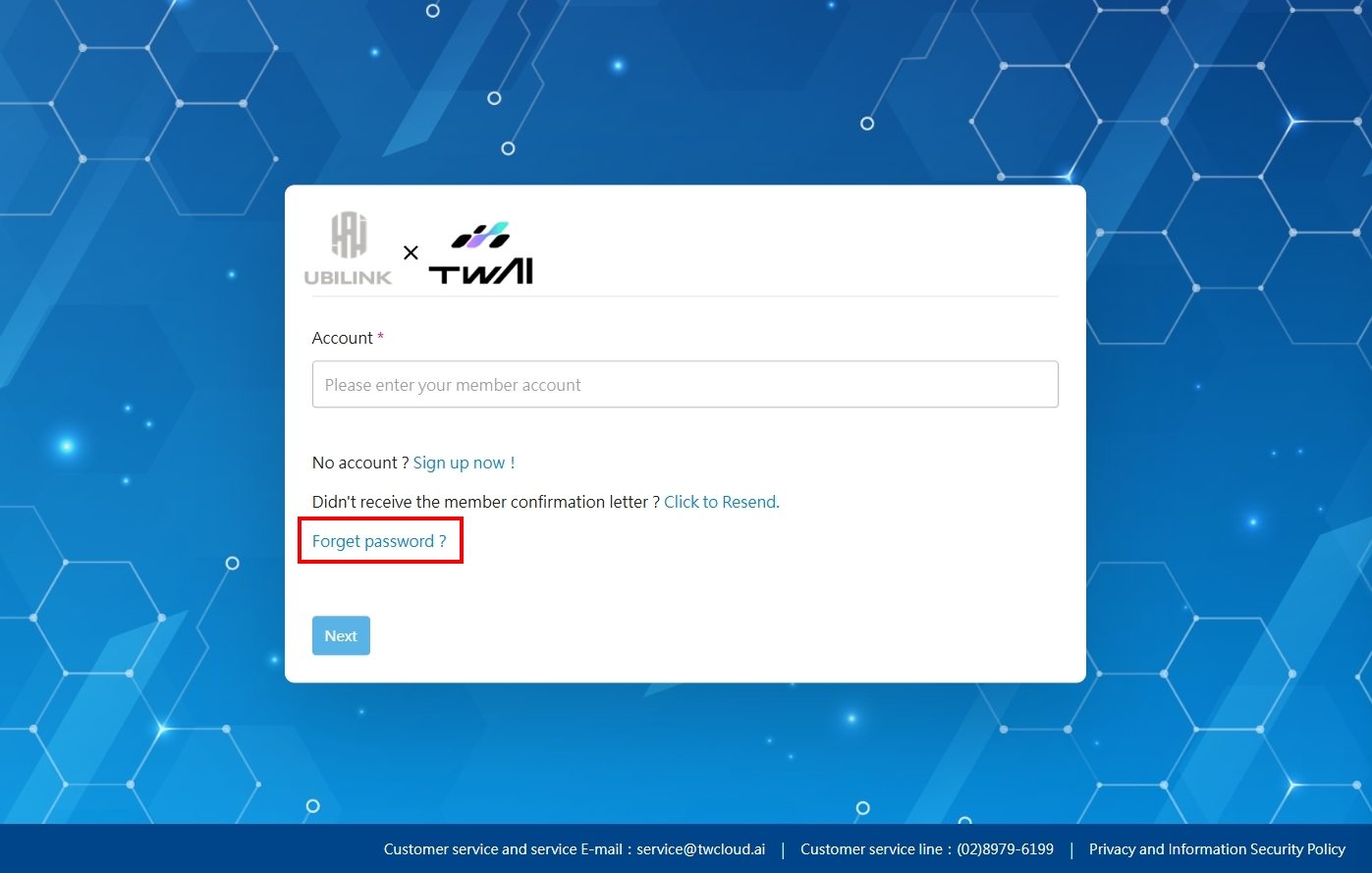
Step 2. Click Forgot password
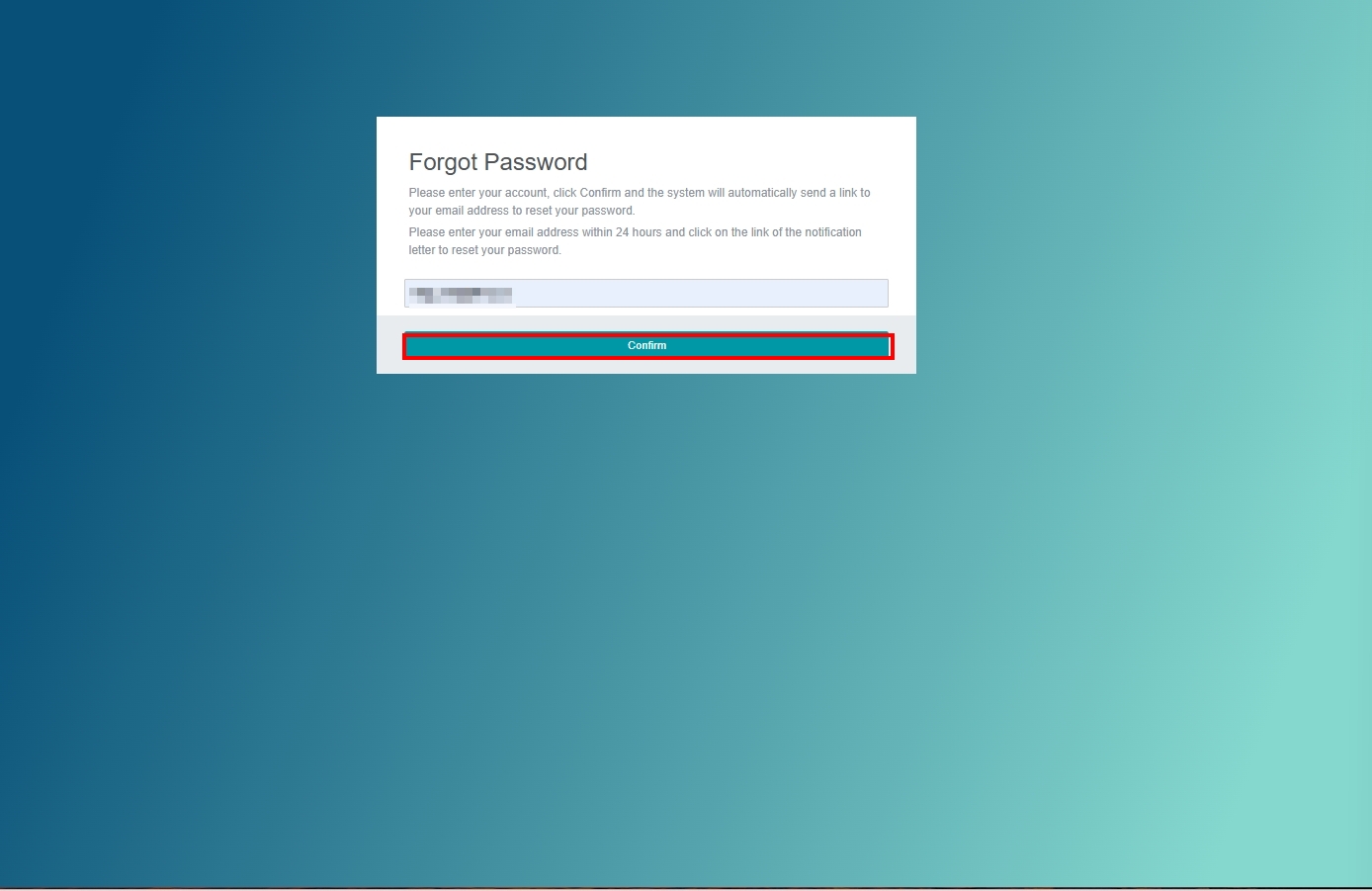
Step 3. Enter your registered email
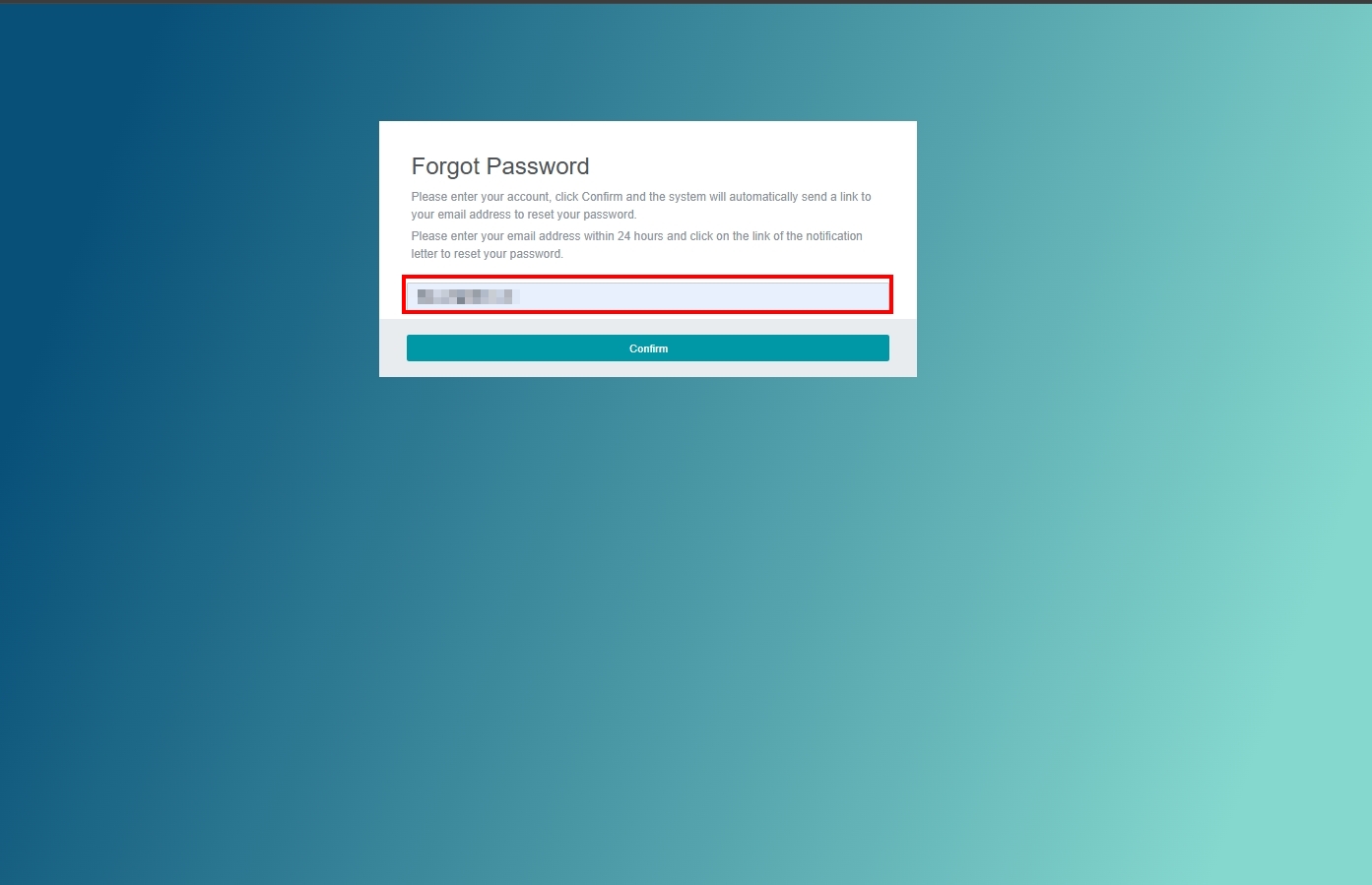
Step 4. Review and click Confirm
Step 5. Password reset verification email
Check your inbox for the password reset verification email and click the password reset link.
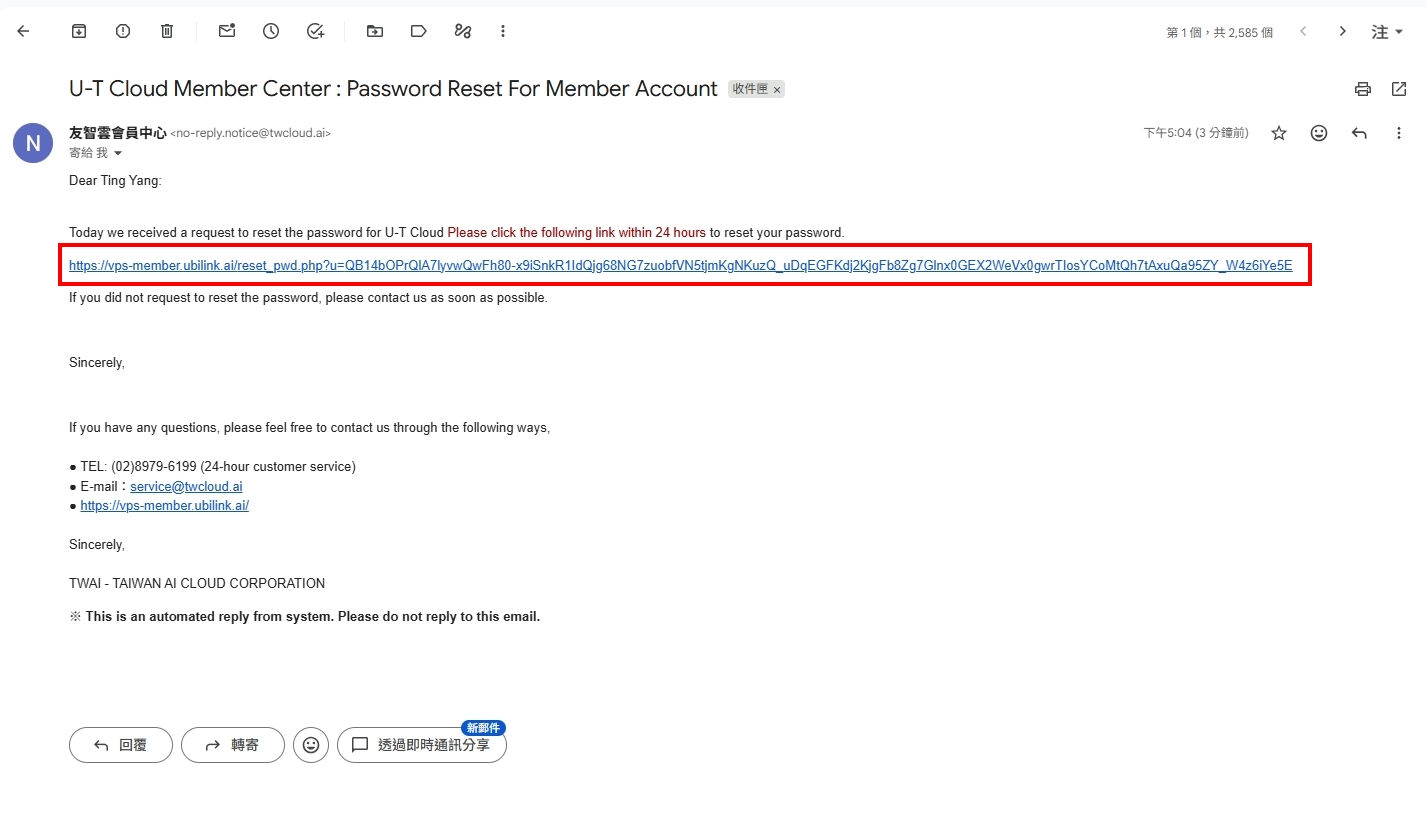
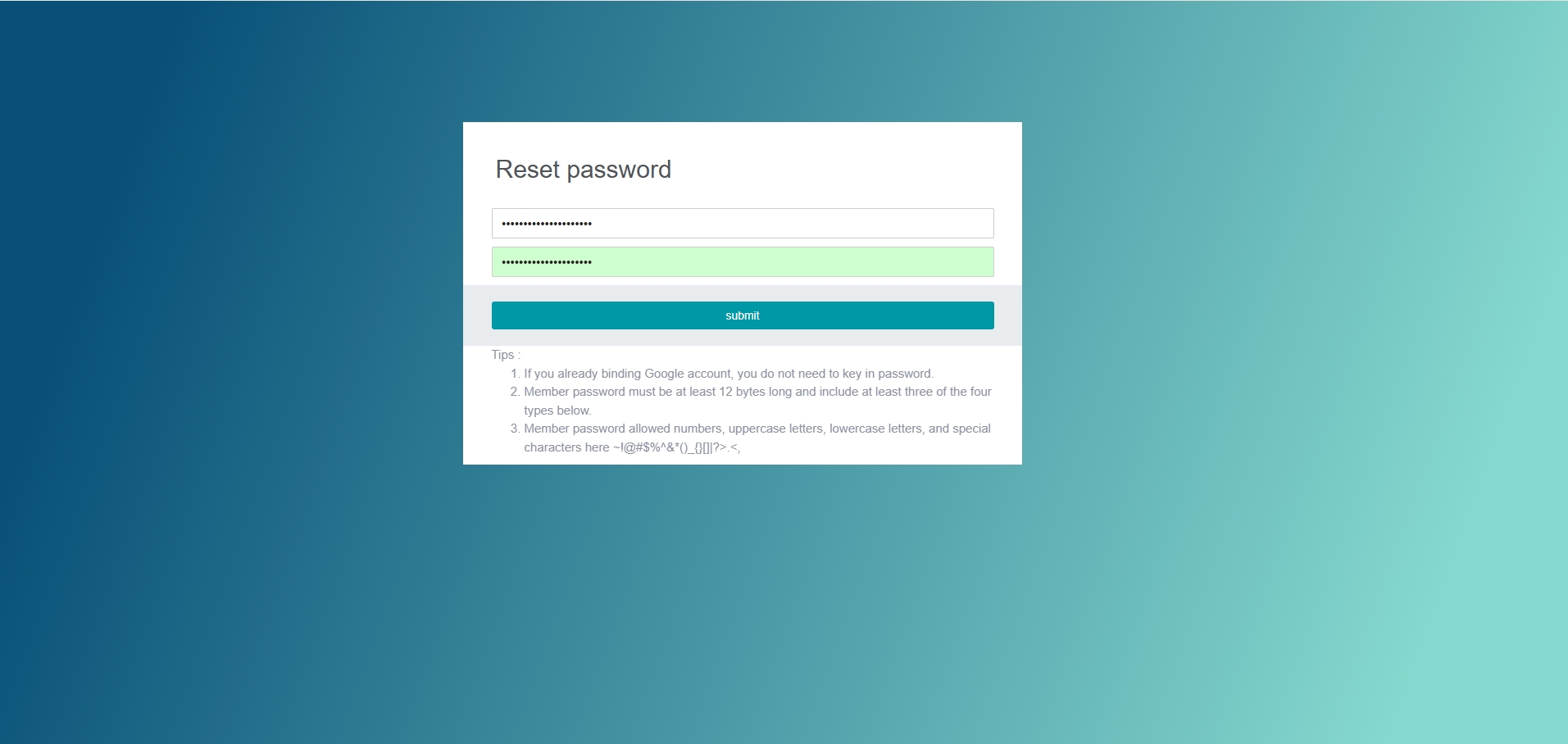
Step 6. Reset your member password
info
- If you have linked your Google account for login, you do not need to enter the member password, but please change the password of the linked account regularly to keep your account secure.
- The length of the member password must be at least 12 characters, and not too simple.
- The password can be the combination of the 4 types mentioned below, such as numbers, English letters (upper and lower case are counted as 2 types), and special characters. Password must contain at least 3 types.
- The maximum validity period for account passwords (member or system account) is 180 days.
- When the password is about to expire (seven days before the expiration date, three days before the expiration date, and the expiration day), a password reminder notification will be sent. Please sign in to the Member Center and modify it.
Step 7. Complete the password reset
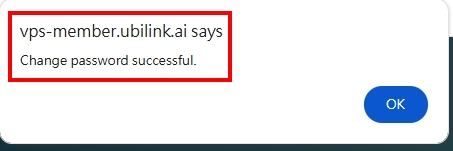
After the reset, a Password changed successfully window will pop up.
A password change notification will also be sent to your email.