Project Management
Member center projects
Manage member center projects
- Select Project Management > Member center Project from the left menu to enter the Member center Project Management page and view your Member center project list.
- Click the more options icon on the right side of the list to Copy ID.
- Click a list to view the project members.
Manage members for member center projects
- Accessing the Member Center Project Member Management page will display the project members and their identities.
- Click the more options icon on the right side of the list to perform User Emulation and Copy ID.
User emulation
info
Prerequisite: The user must enable the User Emulation feature in advance.
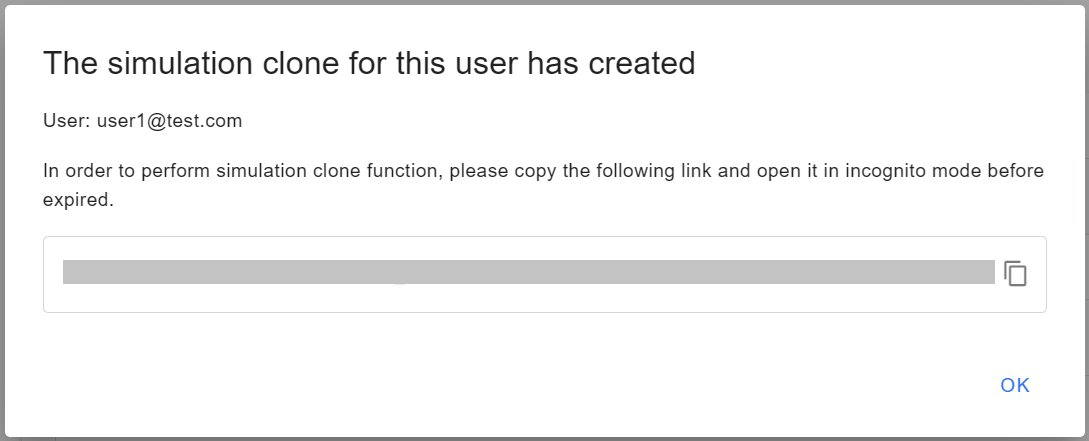
- Click the more options icon on the right side of the list, then click User Emulation.
- After opening the User Emulation window, copy the following link to the Incognito tab within the specified time limit to activate the User Emulation function.
Copy ID
- Click the more options icon on the right side of the list, then click Copy ID to copy the ID to your clipboard.
Testing projects
Add a testing project
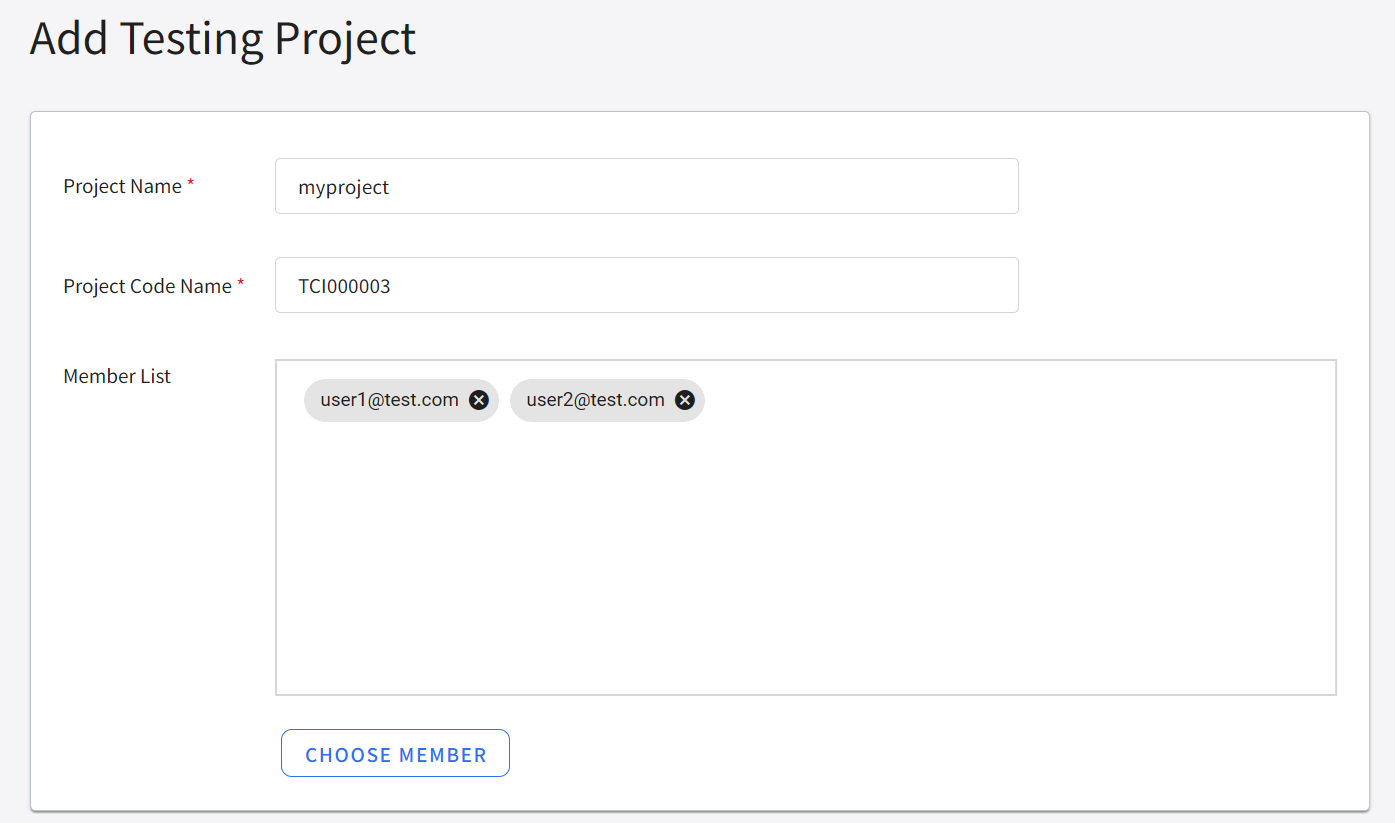
- Select Project Management > Testing Project from the left menu. Click ADD to access the Testing Project Management page.
- Enter the project name and code (project codes start with TCI and end with six digits), choose members, and click OK when finished.
Manage testing projects
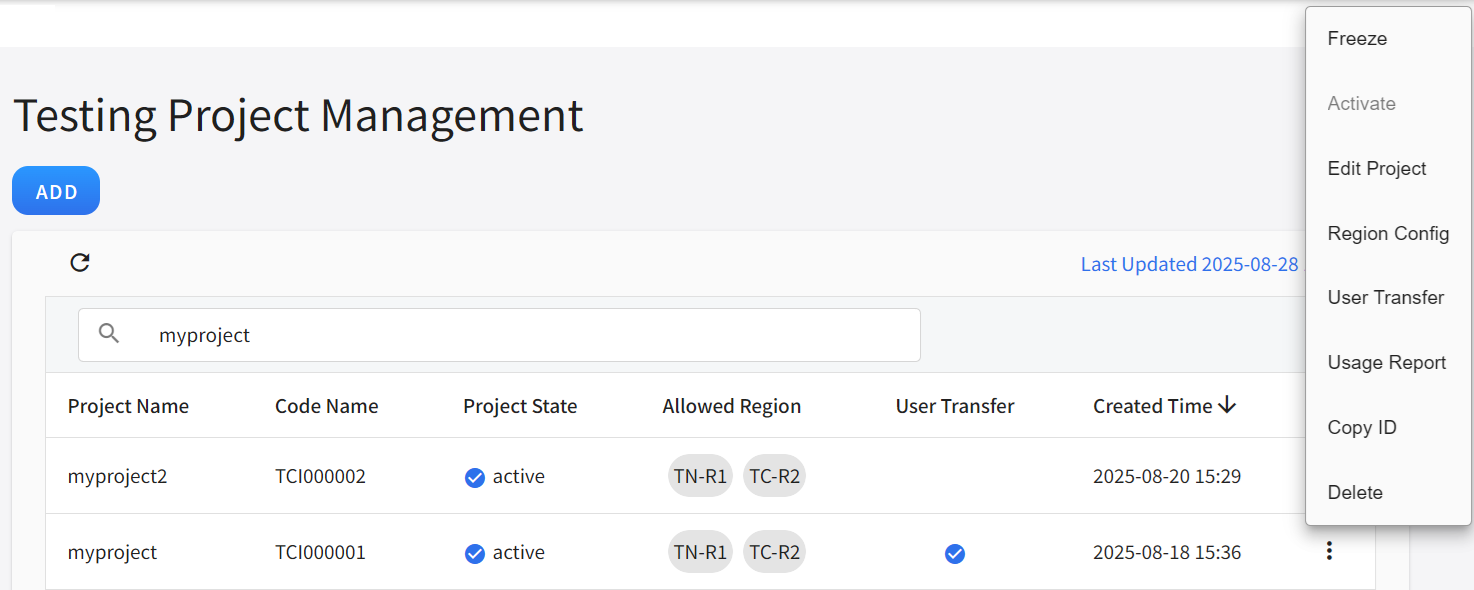
- Once a testing project is created, it will appear in the list. Click the more options icon on the right side of the list to Freeze, Activate, Edit Project, Region Config, Transfer User, Usage Report, Copy ID, and Delete.
Freeze / Activate
- Click the more options icon on the right side of the list, then click Freeze.
- After freezing, the project's status will display as
Frozen, and the system will stop the project from accessing any services. - To unfreeze a frozen project, click more options on the right side of the frozen project list and click Activate. Once the project's status displays as
Active, you can resume using the project.
info
Once a project is frozen, related services will be stopped.
Edit project
- Click the more options icon on the right side of the list, then click Edit Project to edit the project's members. Click OK when finished.
Region config
- Click the more options icon on the right side of the list, then click Region Config. Select the regions available for this project, and click OK when finished.
Transfer user
Enabling the user transfer feature allows project administrators to transfer resources owned by a specific user within the same project to another user within the same project.
- Click the more options icon on the right side of the list, then click User Transfer. Select or unselect the user transfer feature, and click OK when finished.
Usage report
Download the project's monthly metering report to your local computer.
- Click the more options icon on the right side of the list, then click Metering Report. Select the month for the report, and click Download when finished.
Copy ID
- Click the more options icon on the right side of the list, then click Copy ID to copy the ID to your clipboard.
Delete
- Click the more options icon on the right side of the list, then click Delete.
Manage project member
- Click the testing project list to enter the project member management page.
- The project member management page displays the project member's account, name, and role.
- Clicking the more options icon on the right side of the list allows you to User Emulation, Edit Permission, Copy ID, and Delete.
User emulation
info
Prerequisite: The user must enable the User Emulation feature in advance.
- Click the more options icon on the right side of the list, then click User Emulation.
- After opening the User Emulation window, copy the following link to the Incognito tab within the specified time limit to activate the user Emulation feature.
Edit permission
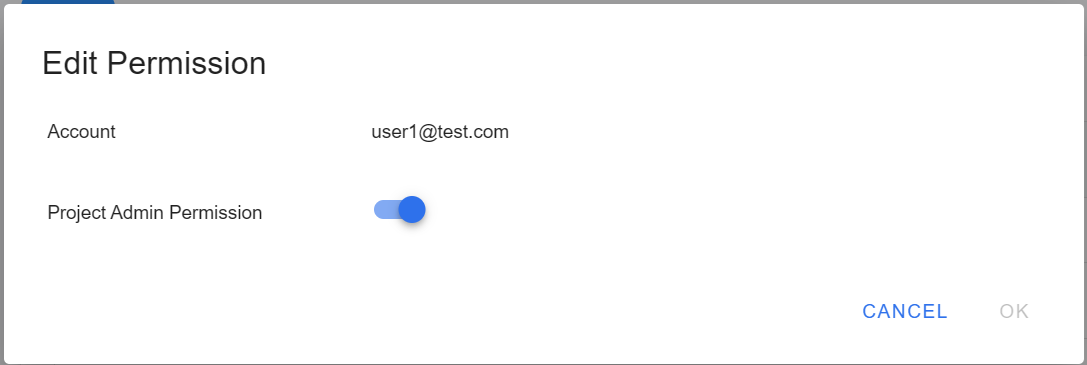
- Click the more options icon on the right side of the list, then click Edit Permission.
- After the Edit Permission window opens, you can set project admin permission.
Copy ID
- Click the more options icon on the right side of the list, then click Copy ID to copy the ID to your clipboard.
Delete a testing project member
- Click the more options icon on the right side of the list, then click Delete.