Flavor Setting
Configure and manage global default flavor settings.
Virtual machine
Create virtual machine flavor setting
- Select Region > Flavor Setting > Virtual Machine on the left menu to access the virtual machine hardware settings management page and click CREATE.
- Enter the settings in the Create Virtual Machine Flavor Setting window and click OK.
Manage virtual machine flavor setting
- Once the virtual machine flavor settings are created, they will be displayed in a list. Click the more options icon on the right side of the list to perform Config Permission, Copy ID, and Delete.
Setting
- Click the more options icon on the right side of the list, then click Setting.
- Name: Displays the name of the setting.
- Config permission: Set permissions for each project.
- Private: The default permission is Private. Click Granted Projects and select the projects you want to open.
- Public: Open to all projects.
- Flavor Categories: You can choose either Generic or Custom flavor category; click ADD to enter a custom category; click OK when finished.
Copy ID
- Click the more options icon on the right side of the list, then click Copy ID to copy the ID to your clipboard.
Delete
- Click the more options icon on the right side of the list, then click Delete.
Virtual volume
Create virtual volume flavor setting
-
Select Region > Flavor Setting> Virtual volume from the left menu to access the virtual volume flavor setting management page and click CREATE.
-
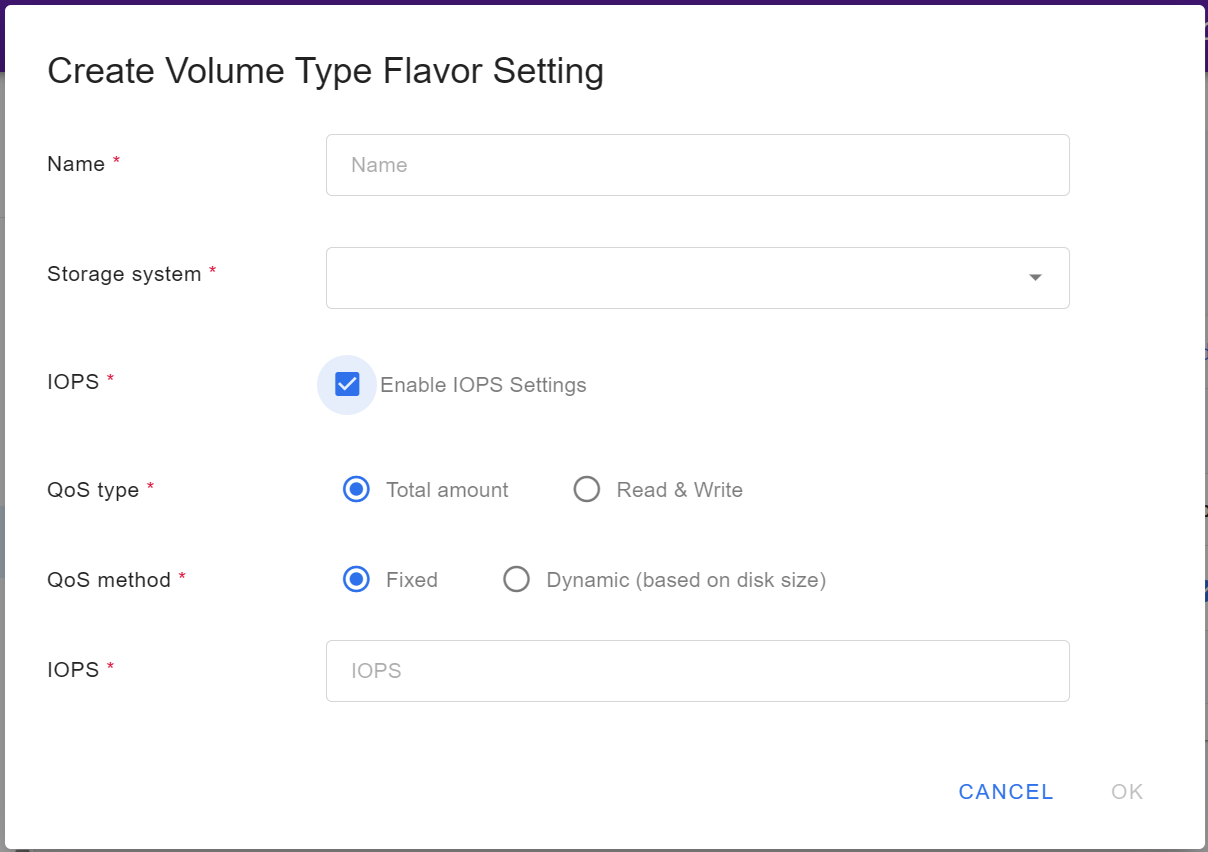
Enter the settings in the Create virtual volume flavor setting window and click OK.
- Name: Enter the name of the virtual volume.
- Storage system: Select the storage system to which this volume belongs.
- IOPS: Performance control. When enabled, you can customize the IOPS (Input/Output Operations Per Second) limit for the volume.
- QoS type: Method of IOPS control.
- Total amount: Set an overall IOPS limit.
- Read & Write: Set separate limits for read and write IOPS.
- QoS method: IOPS calculation mode.
- Fixed: Manually enter a fixed IOPS value.
- Dynamic (based on volume size): The system automatically calculates IOPS according to volume size.
- IOPS: Specific performance value. Enter the number according to the selected QoS type. If Total amount is selected, input the overall limit.If Read & Write is selected, input separate read and write IOPS values. The IOPS value defines the maximum read/write performance. Too low may impact performance, too high may consume more resources.
Manage virtual volume flavor setting
- Once the virtual volume flavor settings are created, they will be displayed in a list. Click the more options icon on the right side of the list to perform Config Permission, Copy ID, and Delete.
Config permission
- Click the more options icon on the right side of the list, then click Config Permission.
- Name: Displays the name of the setting.
- Permission Settings: Set permissions for each project.
- Private: The default permission is Private. Click Granted Projects and select the projects you want to open.
- Public: Open to all projects.
Copy ID
- Click the more options icon on the right side of the list, then click Copy ID to copy the ID to your clipboard.
Delete
- Click the more options icon on the right side of the list, then click Delete.