Create an image
- Before creating an image, it is strongly recommended that you refer to Best practices to create a VCS instance images to ensure effective acquisition of the image.
- If the image state is stuck in
QUEUEDand does not change toACTIVEfor a long time, please contact the Technical Support: service@twcloud.ai for help.
Create a general image
- TWAI Portal
- TWCC CLI
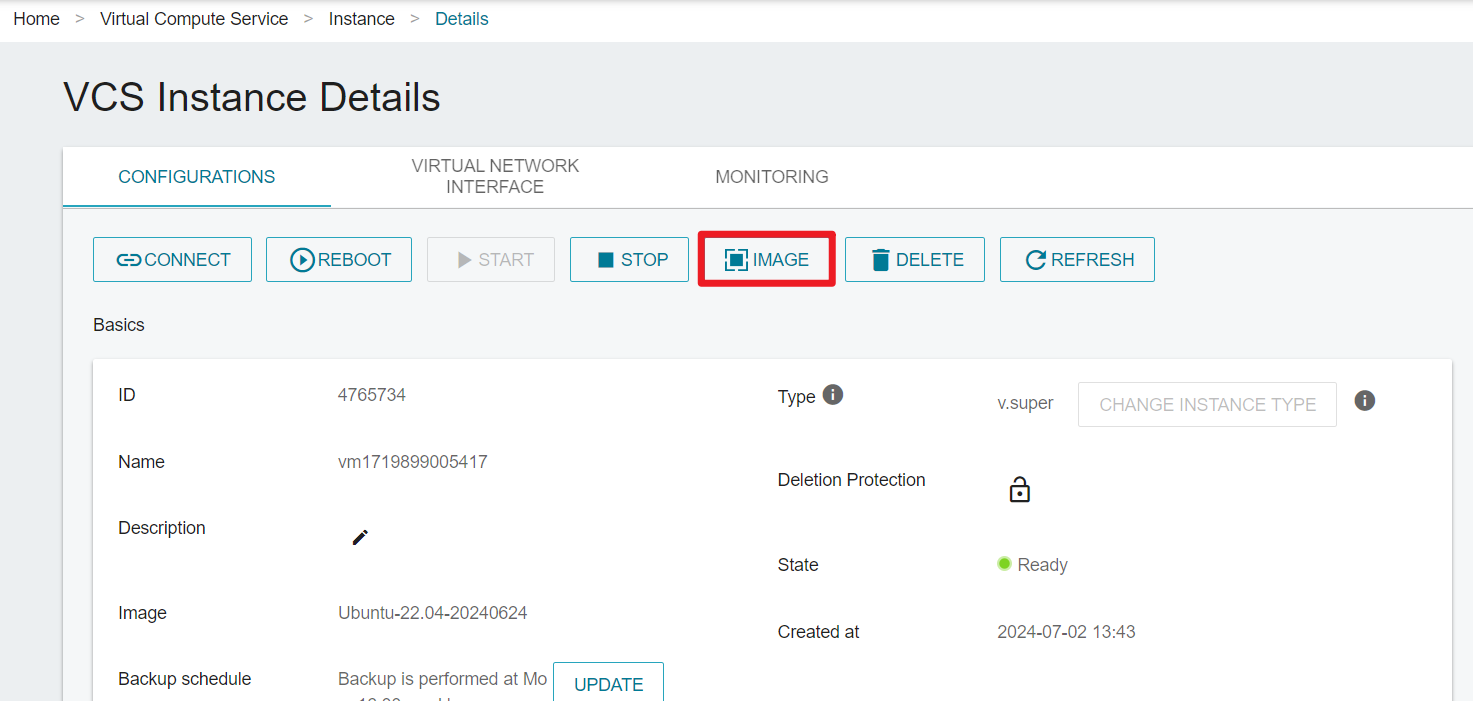
- On the VCS Instance Management page, select an instance you want to create an image to keep the settings, and then on the VCS Instance Details page, click IMAGE.
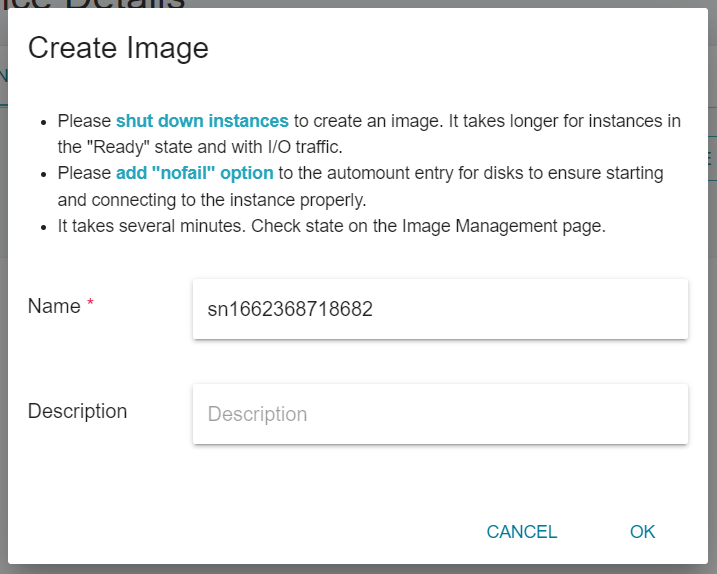
- Read the instructions in the window, and enter a name and description for the image, then click OK.
- It takes several minutes to create the image. After the Processing... prompt disappears, you can continue with other tasks.
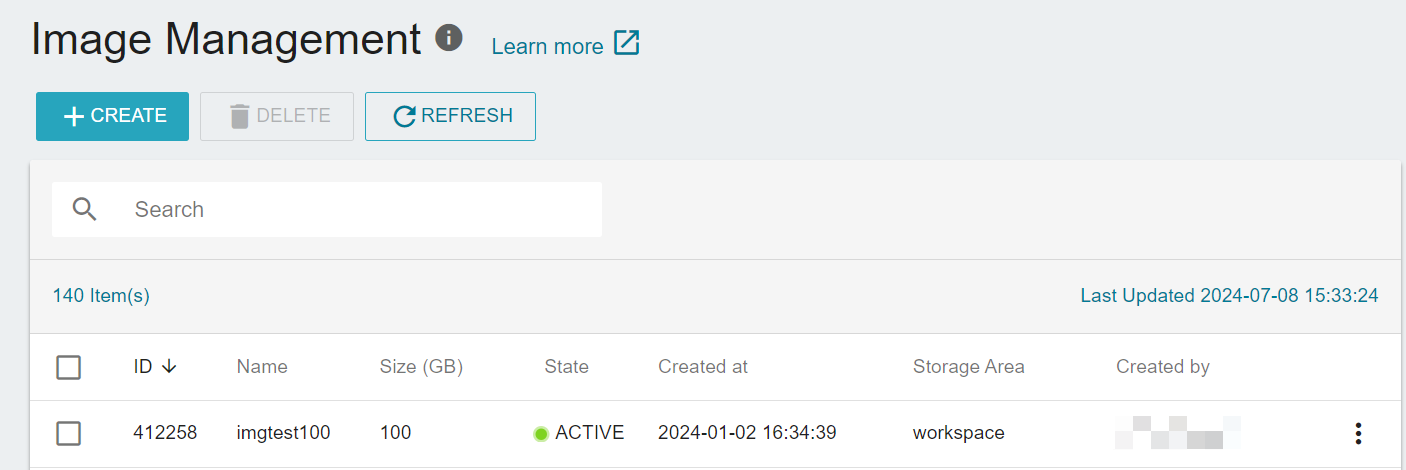
- You will be directed to VCS Instance Image Management page. Wait for the image state to change from
QUEUED>SAVING> finally toACTIVEbefore using it.
Command
twccli mk vcs -s        # Instance ID
              -snap     # Create an image
- The parameters in the square brackets [ ] are optional and the rest are required.
Example
- Create an image for the VCS instance with ID
918628
twccli mk vcs -s 918628 -snap
Image auto backup
After creating a VCS instance, you can set up a schedule to automatically backup your image. You can also change or cancel your backup schedule as needed.
- TWAI Portal
- TWCC CLI (TBD)
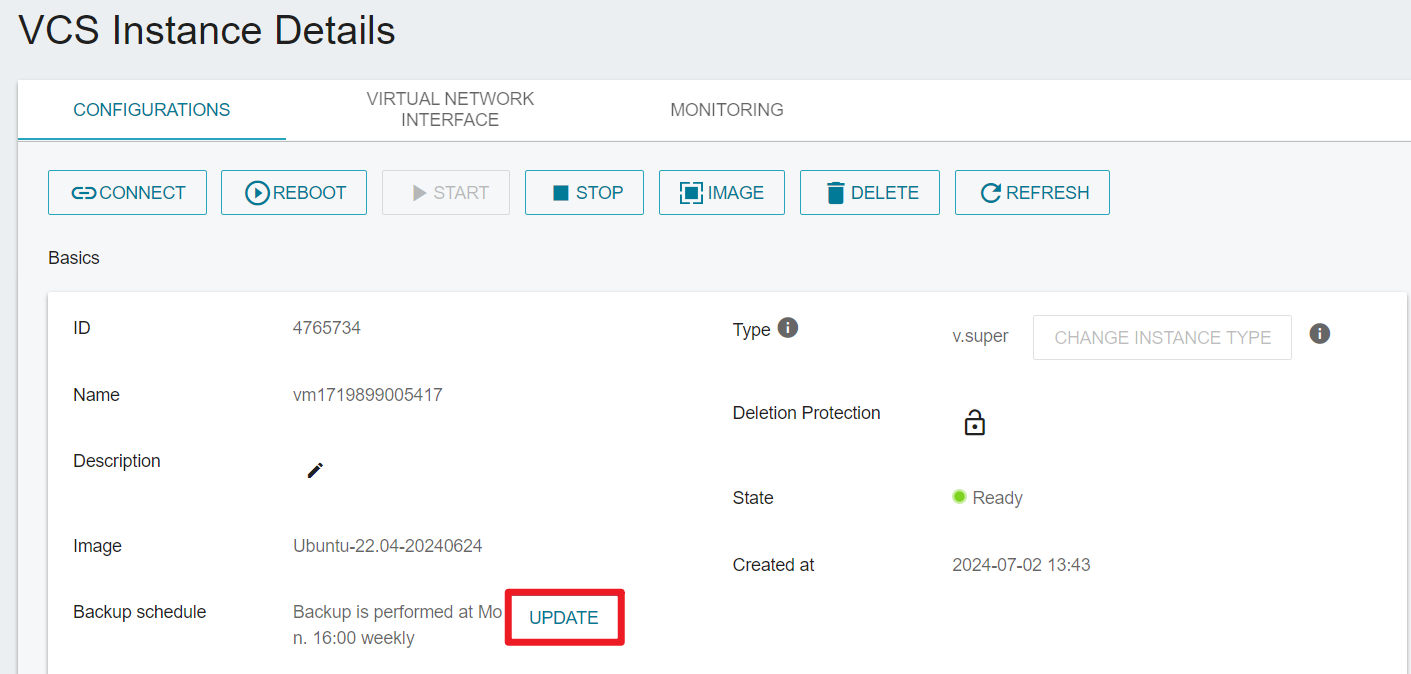
- On the VCS Instance Management page, select the desired instance and enter the VCS Instance Details page. Click UPDATE to set up your backup schedule.
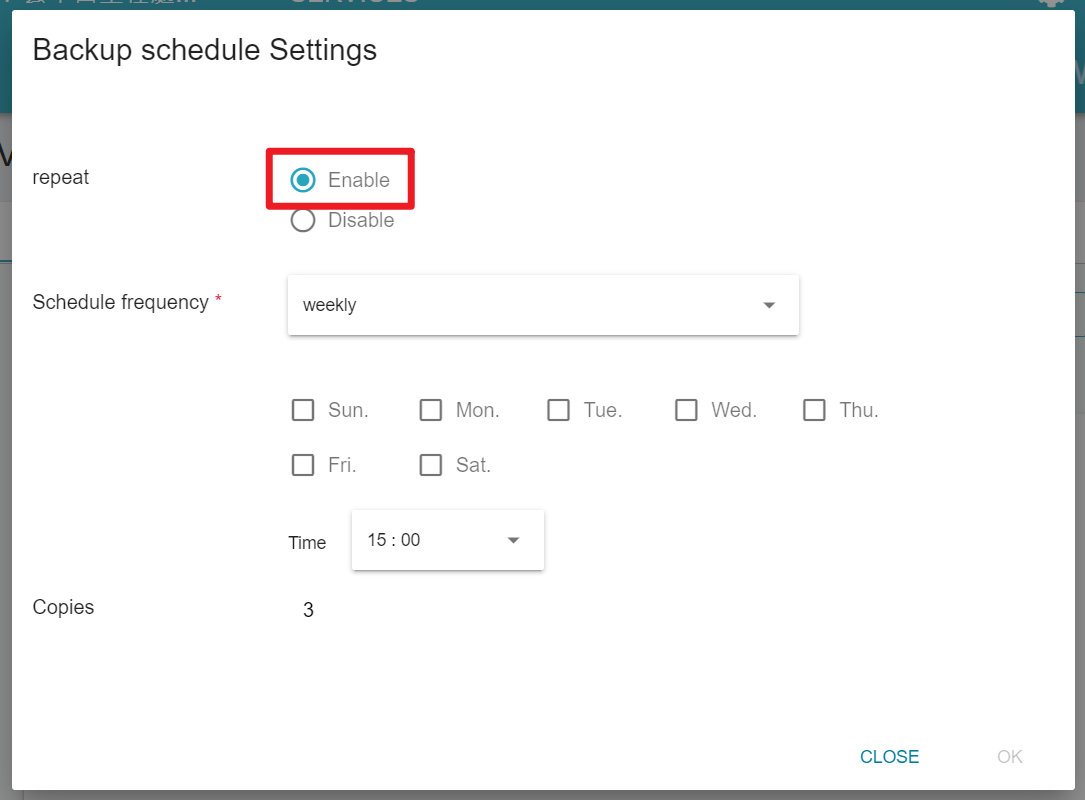
- Click ENABLE, and select the schedule frequency.
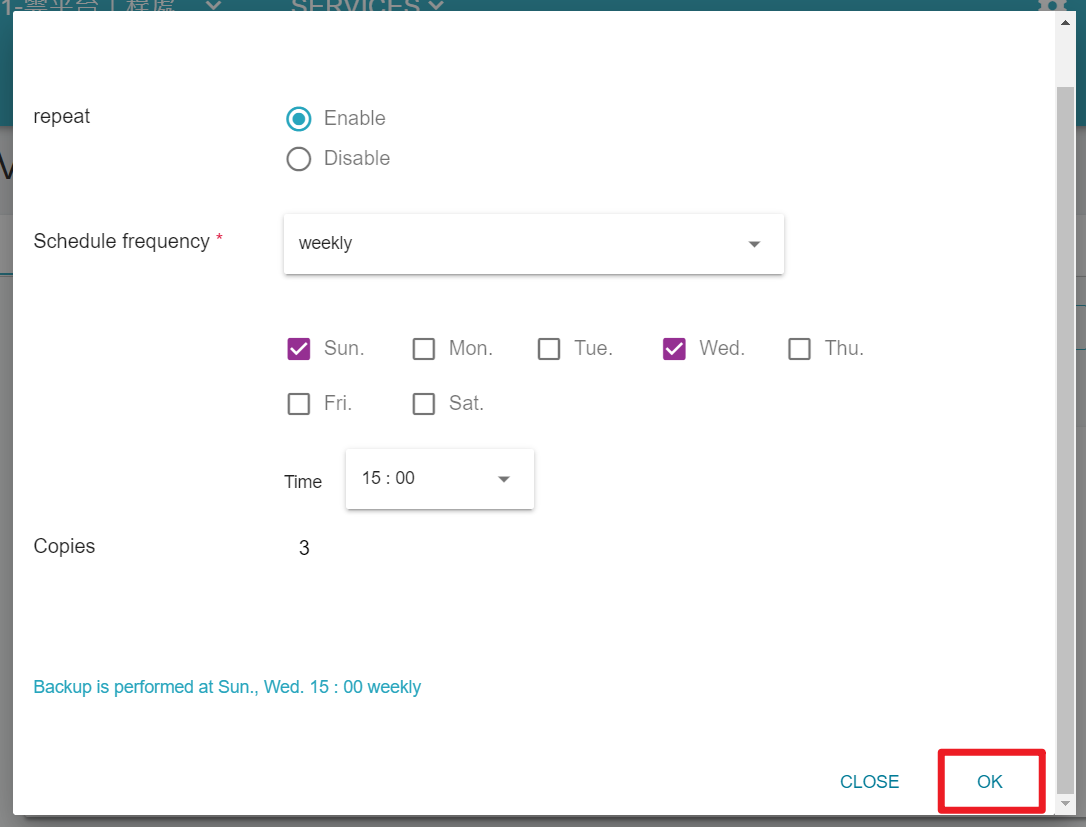
- Then, click OK. The backup schedule you set will appear on the Backup schedule section.
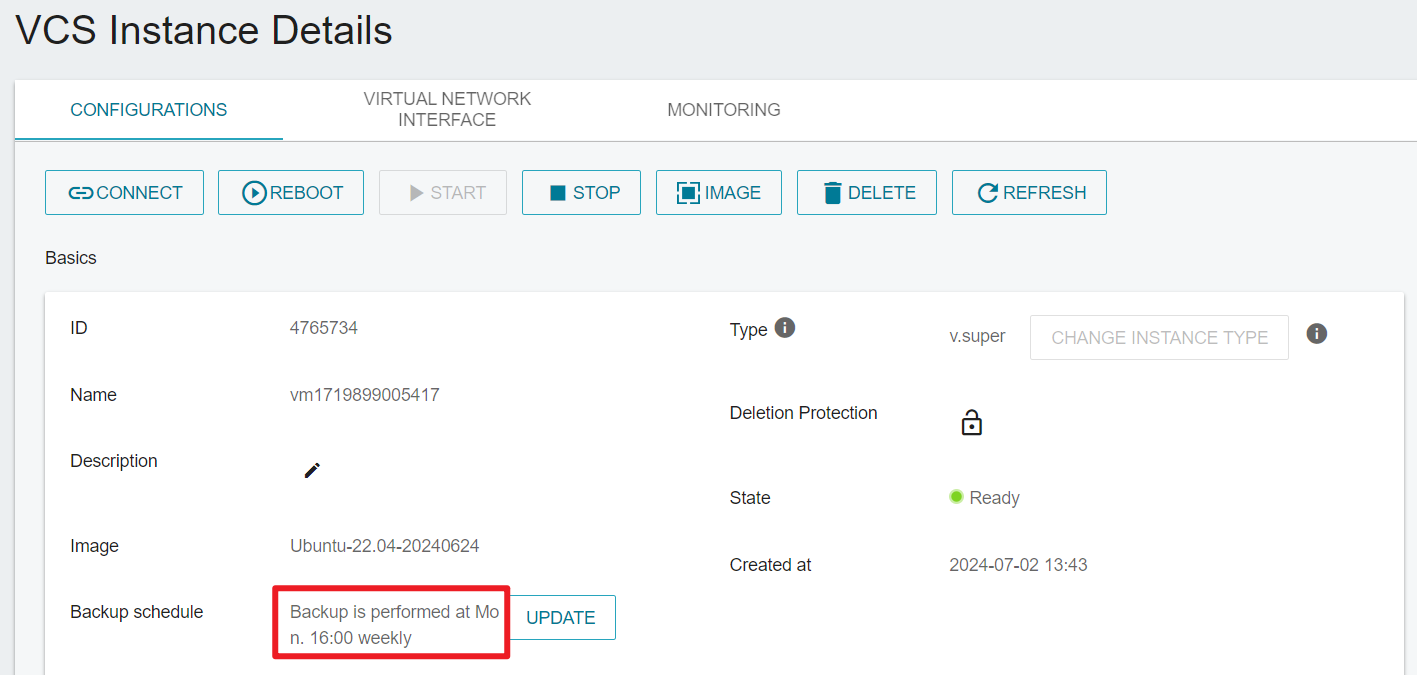
When the auto-backup feature is enabled, the system will only retain the three most recent copies of the image for each instance. If a new image is created while the three quotas are filled, the system will automatically delete the oldest one.
- You can manage your auto-backup image on the Image Management page.
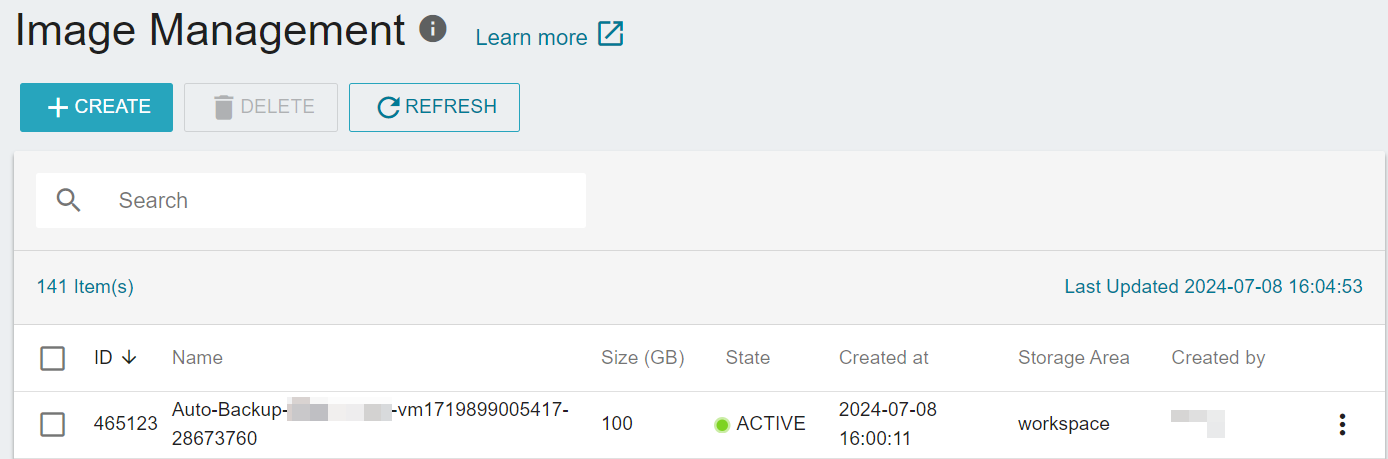
The naming method for auto-backup image is Auto-Backup-Project ID-VCS instance name-Timestamp. You can mange the auto-backup images on the Image Management page.
Enabling the auto-backup feature on multiple VCS instances may generate a large number of images and take up substantial storage space, leading to considerable costs. Please be mindful and manage your images closely.
Create scheduled images
Use crontab to automatically and regularly create an scheduled image .
- TWAI Portal (Not yet supported)
- TWCC CLI
- Use
crontab -eto set the schedule of creating images. For more related functions, please refer to CronHowTo. - Specify a time for creating the image. The example here creates an image at 01:01 midnight.
